A Scanner That Is Not a Domain Admin
Contents
- The setup: who does what
- Five terms, in plain English
- First, why not Nessus
- The chain
- The account
- The group
- The policy
- The scope, which is the actual control
- The policy that applied to nothing
- The detour: DNS that looked fixed
- Proof on a real machine
- One door open, four closed
- The scan, and what the SIEM made of it
- What this does not solve
- A checklist for giving a service account admin rights
- What I would tell myself at the start
A vulnerability scanner can look at a machine from outside or from inside. From outside, it learns that port 445 answers. From inside, it learns that this machine is missing a specific security update published in June. The inside view is worth far more, and it is called a credentialed scan, because the scanner logs in to do it.
To log in to a Windows machine and read its registry, installed software and patch level, the scanner’s account has to be in that machine’s local Administrators group. So the scanner needs administrator rights on nearly every machine in the estate.
The lazy way to arrange that is one step: put the scanner’s account in Domain Admins. Done. And now a password that never expires sits inside a scanner’s database, holding the keys to the entire domain.
This note is the other way. It opens with the map, because every step after it happens somewhere on that map.
The setup: who does what
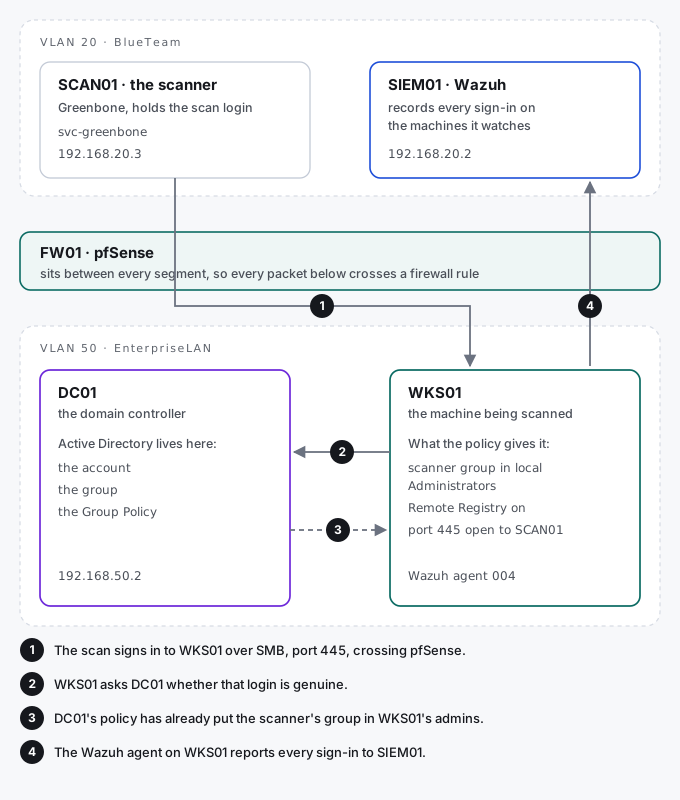
Five machines take part in a single credentialed scan.
| Machine | Where it sits | Its job in this story |
|---|---|---|
| SCAN01 | VLAN 20, the BlueTeam segment, 192.168.20.3 | The Greenbone scanner. It holds the scan login and uses it. |
| SIEM01 | VLAN 20, 192.168.20.2 | Wazuh, the SIEM. It records every sign-in on the machines it watches. |
| pfSense | Between every segment | The firewall. The scan has to cross it to reach the target. |
| DC01 | VLAN 50, the Enterprise LAN, 192.168.50.2 | The domain controller. The scan login, its group and the Group Policy all live in its Active Directory. |
| WKS01 | VLAN 50 | The workstation being scanned. The policy makes the scanner one of its administrators. |
The important split is between DC01 and WKS01. The rules live on the domain controller. The rights land on the workstation. Everything below is about making sure the rights land only where they should.
Five terms, in plain English
If Active Directory is new to you, these are the only terms the rest of the note needs.
| Term | What it means | In this lab |
|---|---|---|
| Local Administrators | A group that exists on every Windows machine. Its members control that one machine. | What the scanner needs on WKS01. |
| Domain Admins | A group whose members control every machine in the domain, including the domain controllers. | What the scanner must never be in. |
| Group Policy object | A bundle of settings written once on the domain controller and applied by each machine to itself. | SEC-Scanner-Access, which grants the scanner its rights. |
| Organisational unit | A folder in Active Directory that holds users, groups or computers. | Computers, Workstations, Domain Controllers. |
| Link | Attaching a Group Policy to a folder. Everything inside that folder receives it. | The policy is linked to Computers only. |
First, why not Nessus
Nessus Essentials was my first choice, purely because Tenable’s interface is the one that turns up in job descriptions. I read the current terms on 8 September rather than trusting old write-ups: five IP addresses, thirty-day licence. Older posts still say sixteen addresses on a perpetual licence, which was true once.
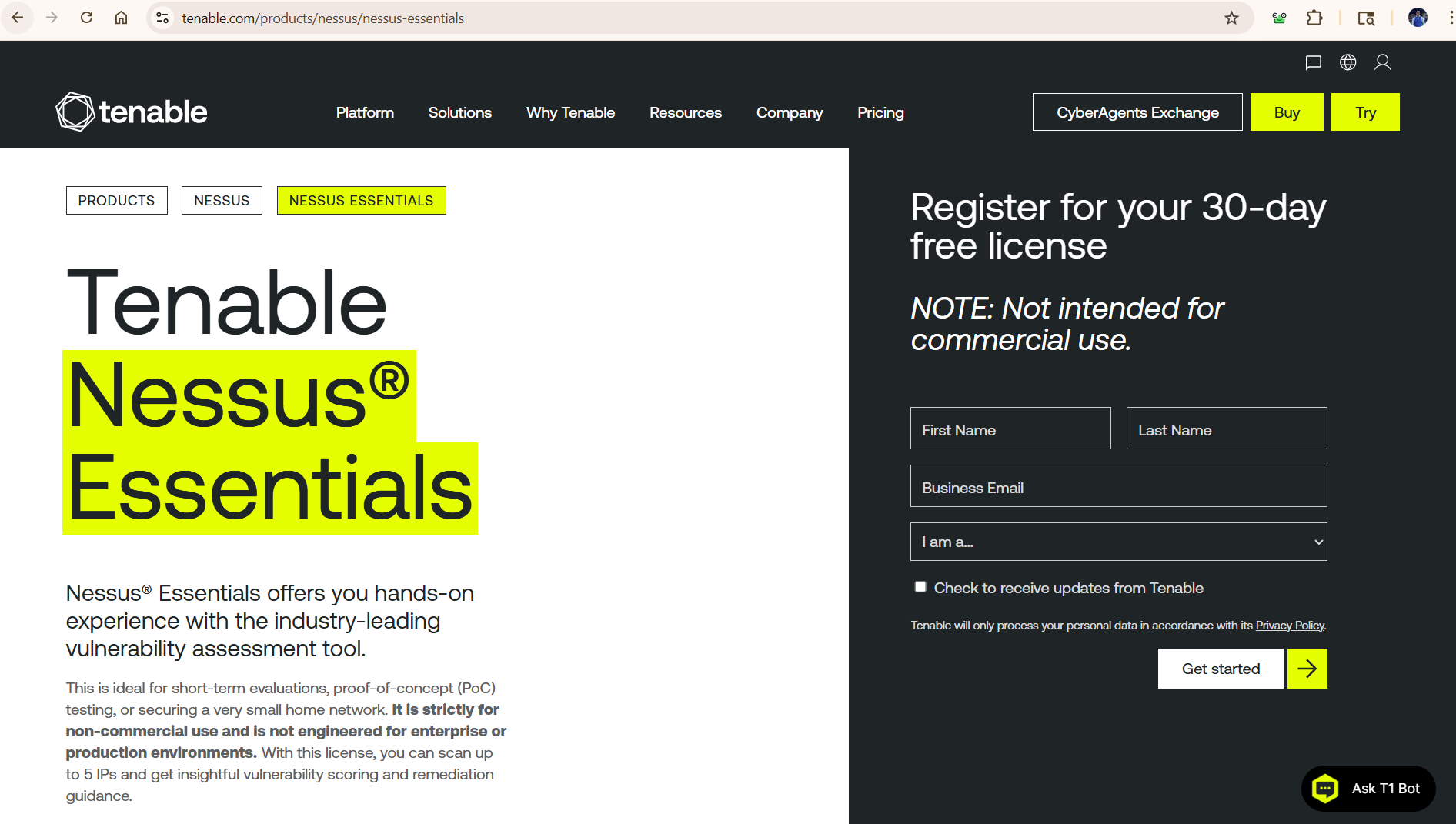
Five addresses cannot cover nine hosts, and coverage is most of what vulnerability management is. A licence that expires in a month cannot sustain the loop that makes scanning worth anything: scan, fix, scan again, show the finding closed. Greenbone Community Edition has no target limit and no expiry, so that is what runs on SCAN01.
It took about four hours and three separate failures to get its vulnerability feeds loaded, which is a story about disk space, a half-written database and a manager that crashes if you open the web interface too early. That is in the runbook. What matters here is the end state.
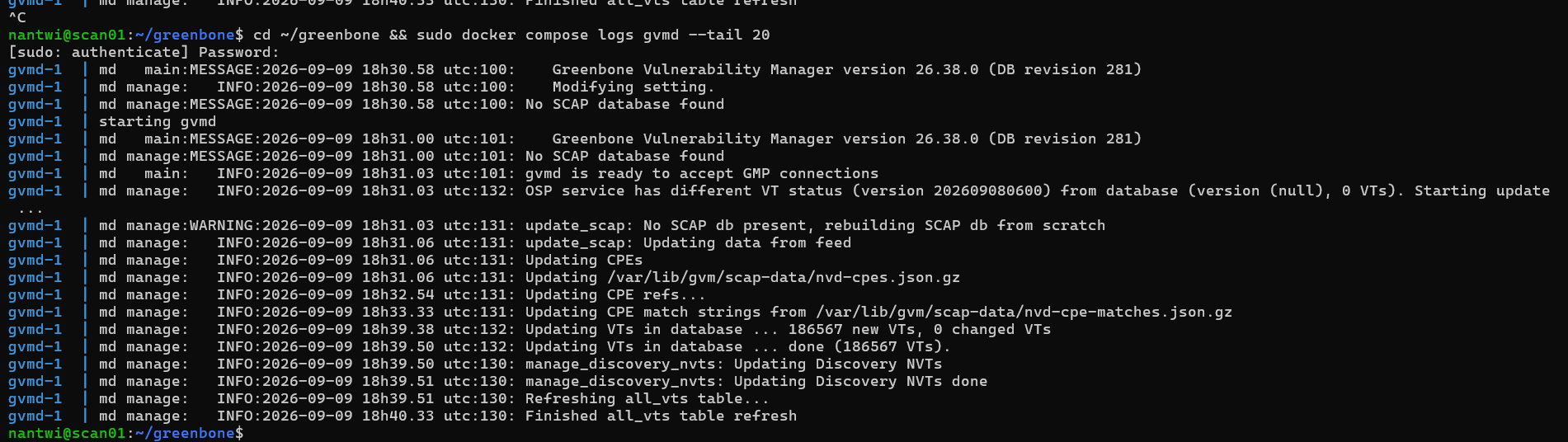
One decision from the build matters for the rest of this note. The lab’s habit is to run Linux services as containers. SCAN01 is a full virtual machine instead, because a scanner stores administrator credentials for everything it scans. Compromise the scanner and you have the estate. That earns it a proper isolation boundary rather than a shared kernel.
The chain
Instead of one big grant, the scanner’s rights come from a chain of four pieces. Each does one job.
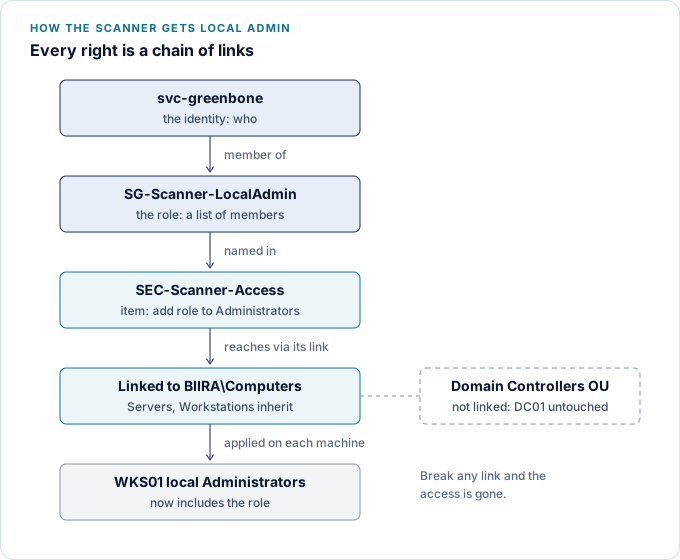
The useful property is at the bottom of that picture: break any one link and the access is gone. Here are the four, in order.
The account
svc-greenbone, a non-human identity: an account that belongs to software, with one purpose and a named human owner. Four settings on it are deliberate.
- User cannot change password: on. A service account should never rotate its own password. If it did, the copy stored in Greenbone would go stale, and an attacker holding the password could lock the owner out of their own scanner.
- Password never expires: on. Chosen so scanning does not silently stop, and recorded as a debt rather than a decision I am happy with. It closes when Vault issues a short-lived password per scan.
- Account is sensitive and cannot be delegated: on. This is the most important one, and the account creation wizard does not offer it. The account signs in to nearly every member machine. Without this flag, a compromised machine could reuse the scanner’s login to reach other systems as the scanner.
- A description naming purpose, group and owner. An account nobody can explain is an account nobody dares remove.
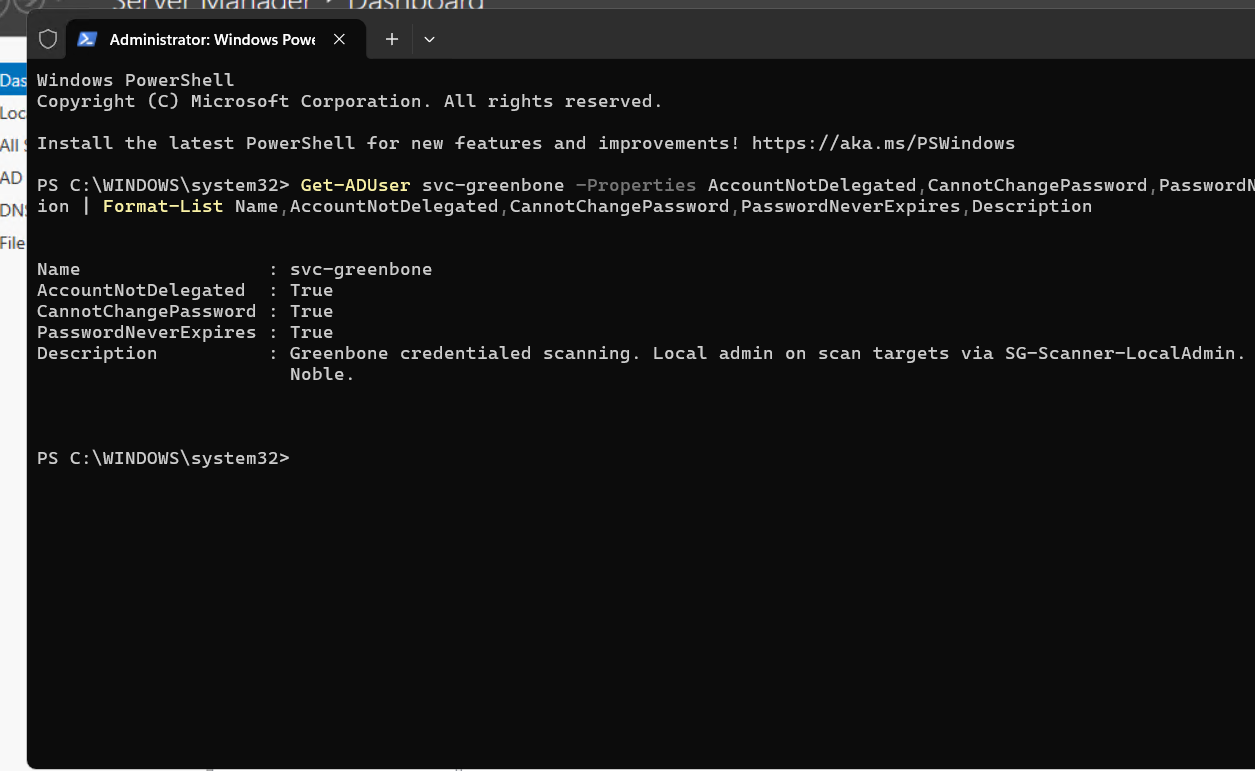
I read those settings back out of the directory rather than trusting the boxes I had ticked.
Why a domain account and not a local one on each machine. A domain account is disabled, audited or changed once, for every machine at the same moment. A local scanner account with the same password everywhere is the classic setup for moving from one machine to the next, which is the problem LAPS exists to solve. And Windows quietly weakens the rights of local accounts logging in over the network, but not domain accounts, so a local account could not scan properly without first loosening a security setting.
The group
SG-Scanner-LocalAdmin, with exactly one member.
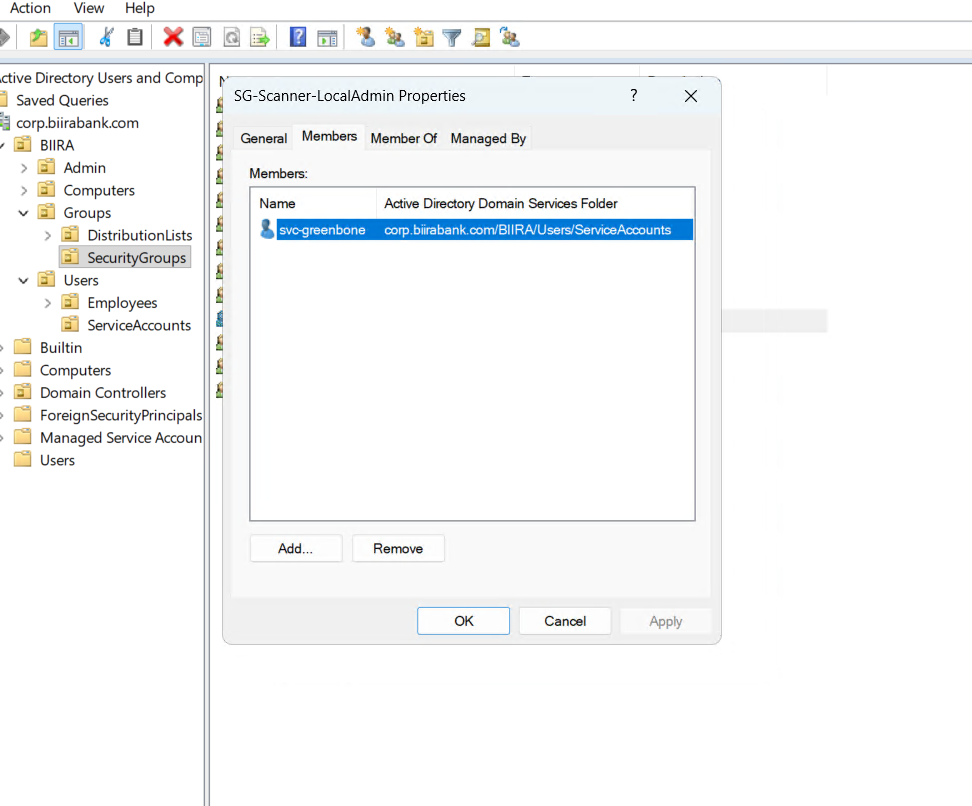
Rights go to groups, never straight to accounts. That sounds like bureaucracy until someone asks “who can do this?”, and the answer is one list you can read. It also means adding a second scanner later changes a membership list, not a policy.
The group grants nothing by itself. It only carries power because the policy names it.
The policy
Each Windows machine keeps its own local account list, which Active Directory cannot edit directly. A Group Policy object is how one instruction, written once on DC01, gets carried out by every machine on itself.
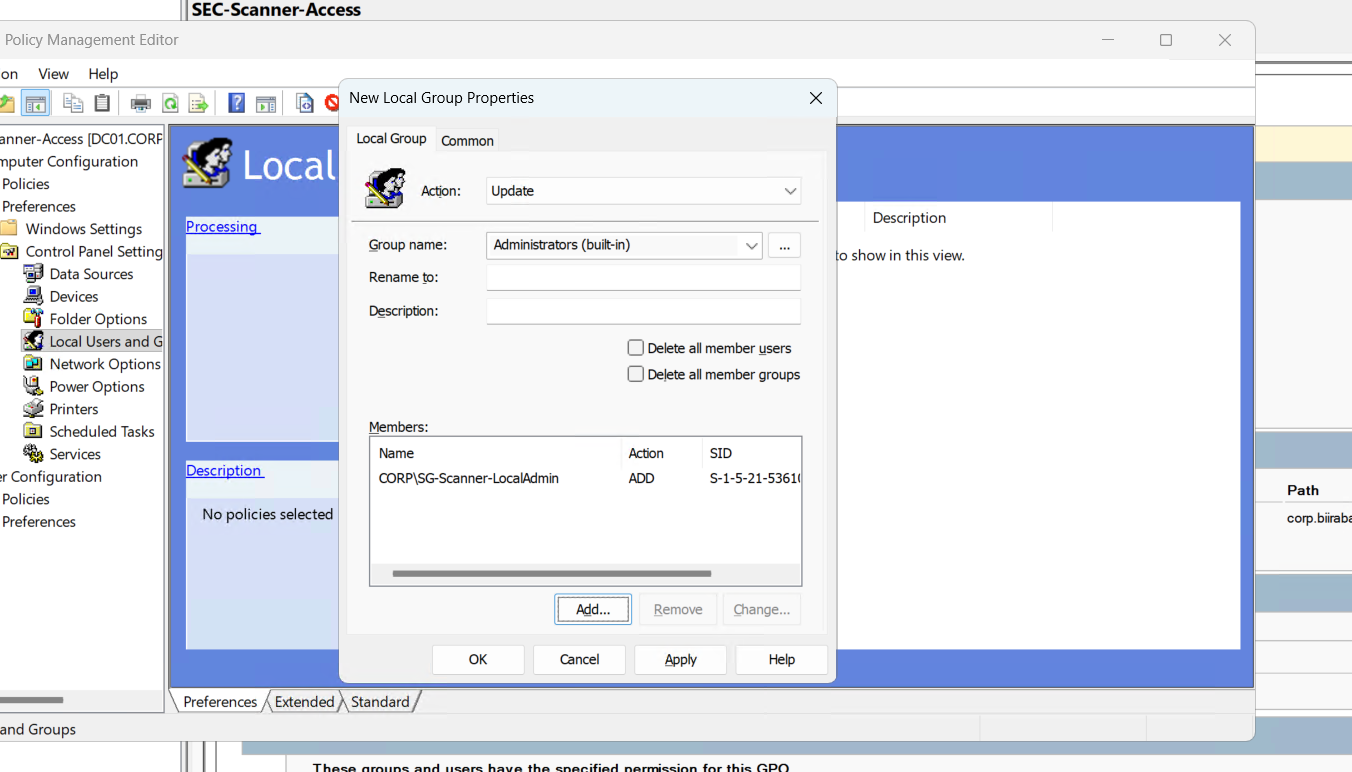
Three fields on that screen decide how safe it is.
- Action: Update, not Replace. Update adds the scanner’s group and leaves everyone else alone. Replace wipes the group and rebuilds it, which on a real estate removes administrators nobody meant to remove.
- Administrators (built-in), picked from the list rather than typed. Picking it stores an identifier that is the same on every Windows machine in every language. A typed name breaks the first time it meets a non-English build.
- Both “delete all members” boxes clear. Ticking either one removes every existing administrator on every machine the policy reaches.
The scope, which is the actual control
This is the piece that keeps the domain controller safe, so it is worth seeing where everything lives in the directory.
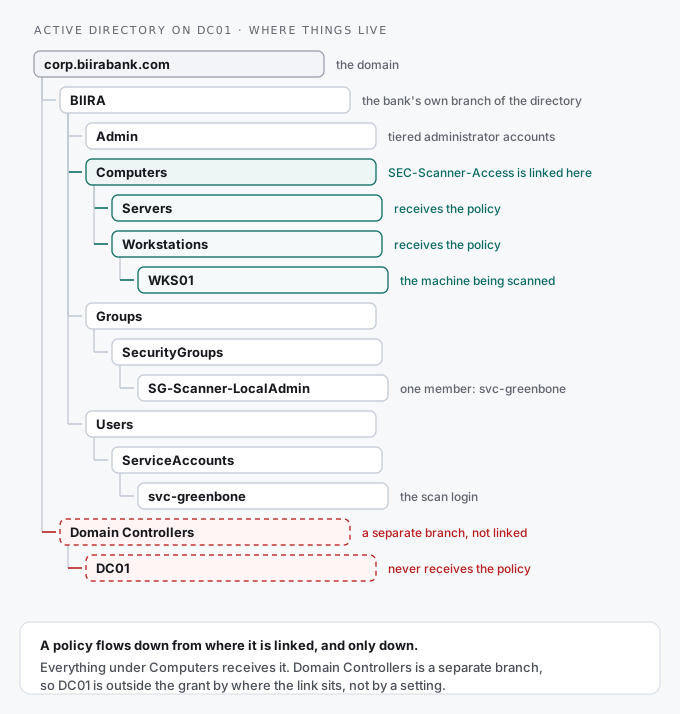
The policy is linked to the Computers folder, which holds member servers and workstations. It is not linked at the top of the domain, and never to Domain Controllers.
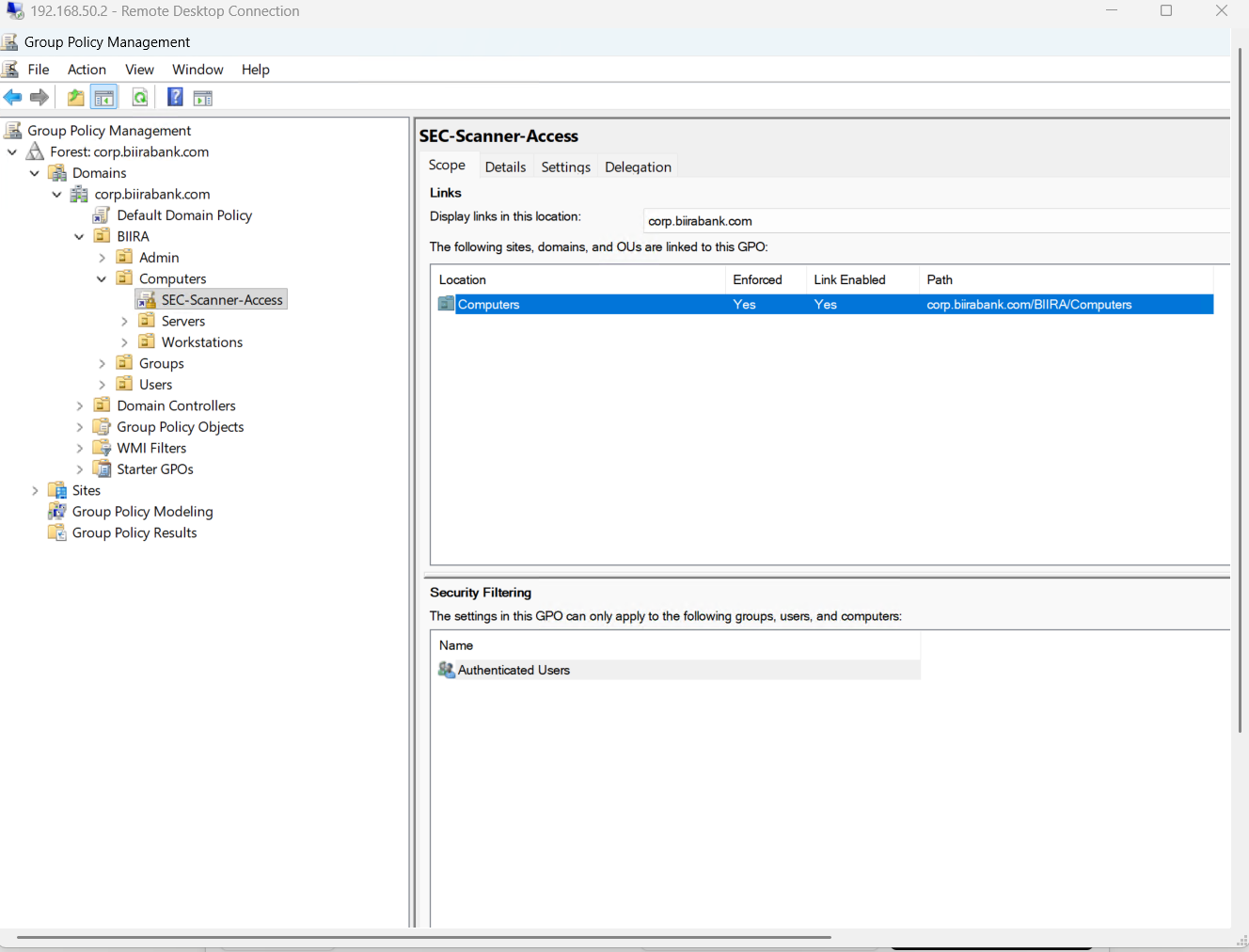
The reason is what “local Administrators” means on each kind of machine. On a workstation it governs that one workstation. A domain controller has no local account list at all: its Administrators group is the domain’s Administrators group. The same instruction that makes the scanner an administrator of WKS01 would, on DC01, make a never-expiring password in a scanner’s database one of the most powerful things in the directory.
Because domain controllers sit in their own separate folder, linking the policy to Computers leaves them out structurally. Not by a checkbox someone can untick, and not by a filter someone can widen. By where the link is.
That leaves an honest gap: how do you scan a domain controller from inside? Cleanly, you do not. I cover it in layers instead. A scan from outside still finds exposed services, weak encryption and patch levels that announce themselves on the network. Wazuh already checks DC01 against the CIS benchmark through its own agent, so no new privilege is created. If full inside scanning of a domain controller is ever required, it gets a separate account kept in a vault, a scheduled window, and an alert on every use.
The policy that applied to nothing
Before going further, I checked which machines the policy would actually reach.
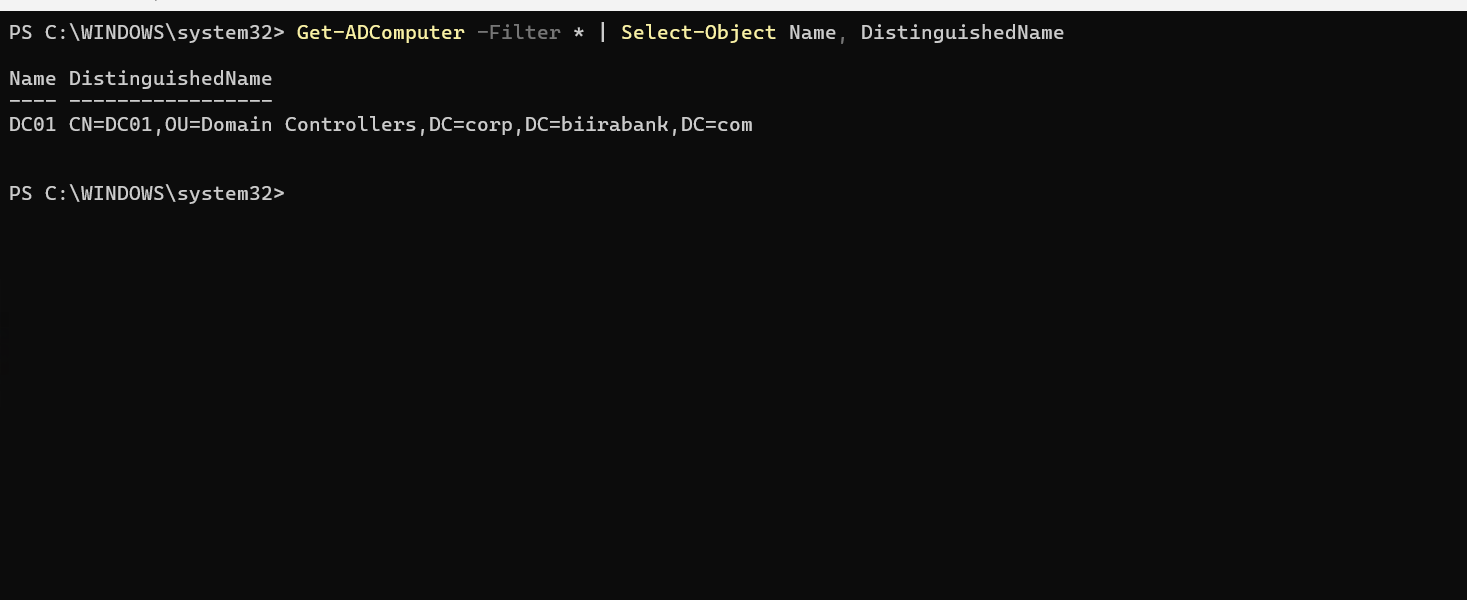
One computer. DC01, sitting in exactly the folder the policy deliberately excludes.
Every workstation had been joined to the old domain and lost its membership when I rebuilt the directory the week before, and none had rejoined. So the policy was correctly written, correctly linked, and reached zero machines. Silently, with nothing anywhere reporting a problem.
A policy linked to an empty folder is not a control. It is a document. The control exists when a real machine reports that it received the policy and the result is visible on that machine.
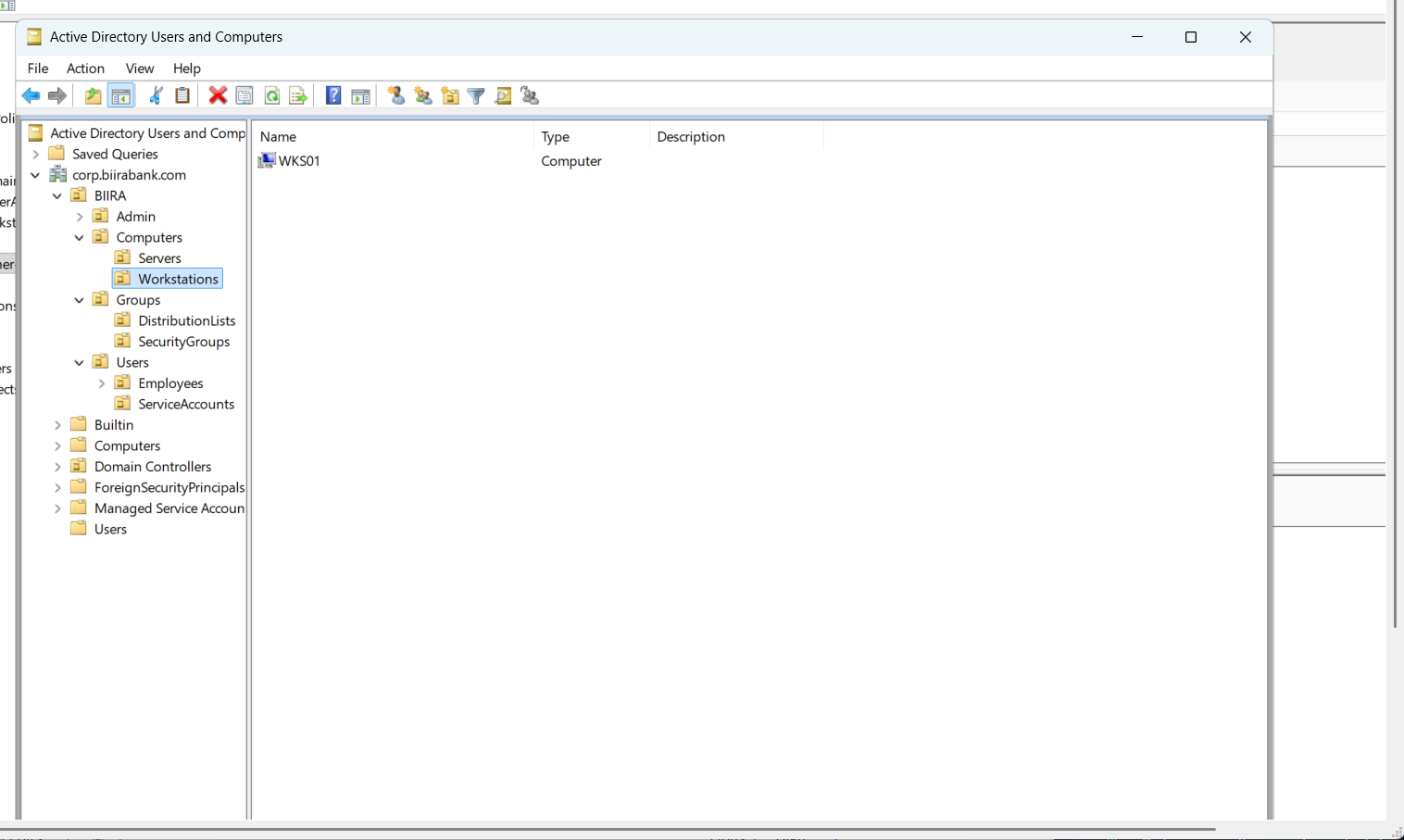
So I built one. I created WKS01’s computer account inside the Workstations folder before the machine joined, which is called pre-staging. Otherwise Windows drops a newly joined machine into a default container that cannot receive a policy link at all.
The detour: DNS that looked fixed
A machine joining a domain finds its domain controller through DNS. So before the join, I checked what WKS01 had been given by DHCP, which on VLAN 50 comes from pfSense.
It had been given public DNS servers and a leftover domain suffix from my home network. A public DNS server has never heard of corp.biirabank.com, so the join could not have found DC01. Every Windows machine placed on that segment would have failed the same way.
Fine: fix it on pfSense, not on the machine. I changed the DHCP settings for VLAN 50, renewed the workstation’s lease, and it showed the right DNS server. Done.
It was not done. The domain suffix still showed the old value.
That mismatch is the clue. Both values arrive in the same DHCP reply, so a correct server next to a stale suffix means the reply was not the source of either. The correct-looking server was a manual entry I had typed into the adapter the day before while troubleshooting. A manual setting survives a lease renewal. The machine looked right while the network behind it had not changed at all.
The real cause was on pfSense. It had saved my change, but the DHCP service reads a separate generated file, and that file was five days old. Saved, never applied. Regenerating it fixed the thing that was actually broken.
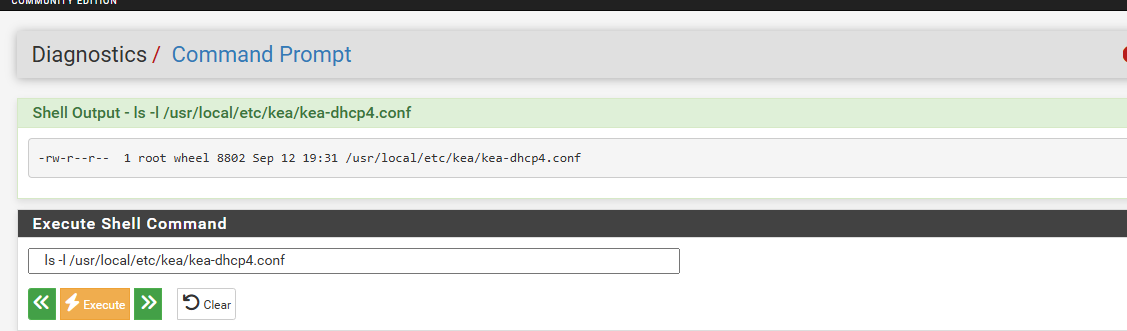
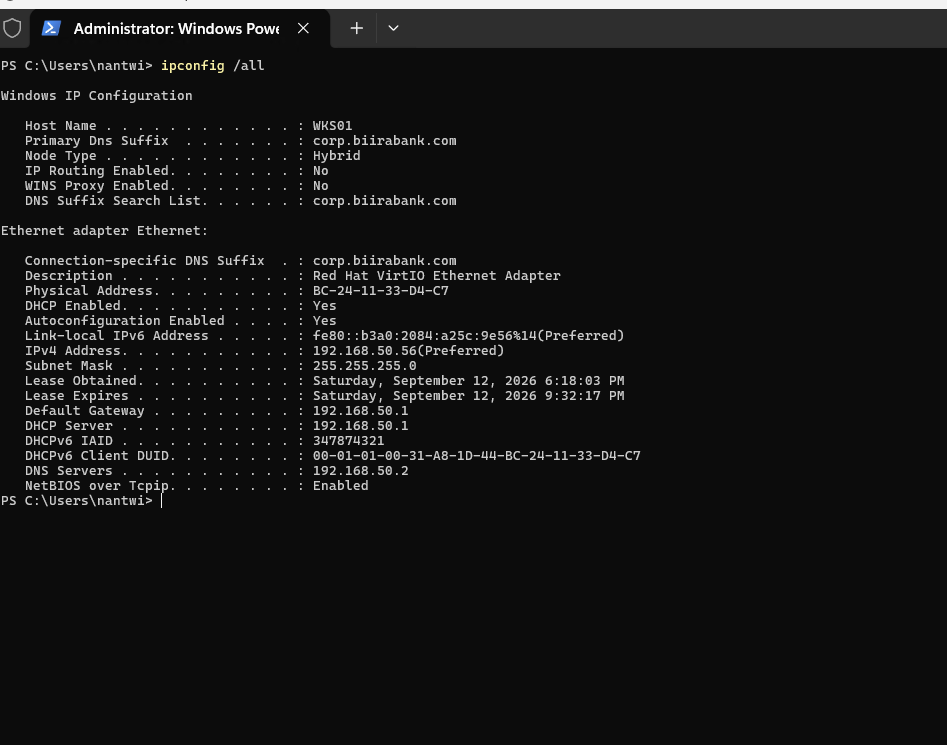
The suffix is the half that proves it, because it can only have come from the reply. Then I cleared my manual entry, because a machine with a hand-typed DNS server ignores every later change on the network, and nothing records that someone typed it.
Two lessons, and the second is the more expensive one.
- Saved is not applied. A setting can sit correctly in a console for days while the service runs from an older file. Check the file and its date, not the form you filled in.
- Clear the workaround before you test the fix. A manual setting on a client hides a broken server perfectly. My first test passed and proved nothing.
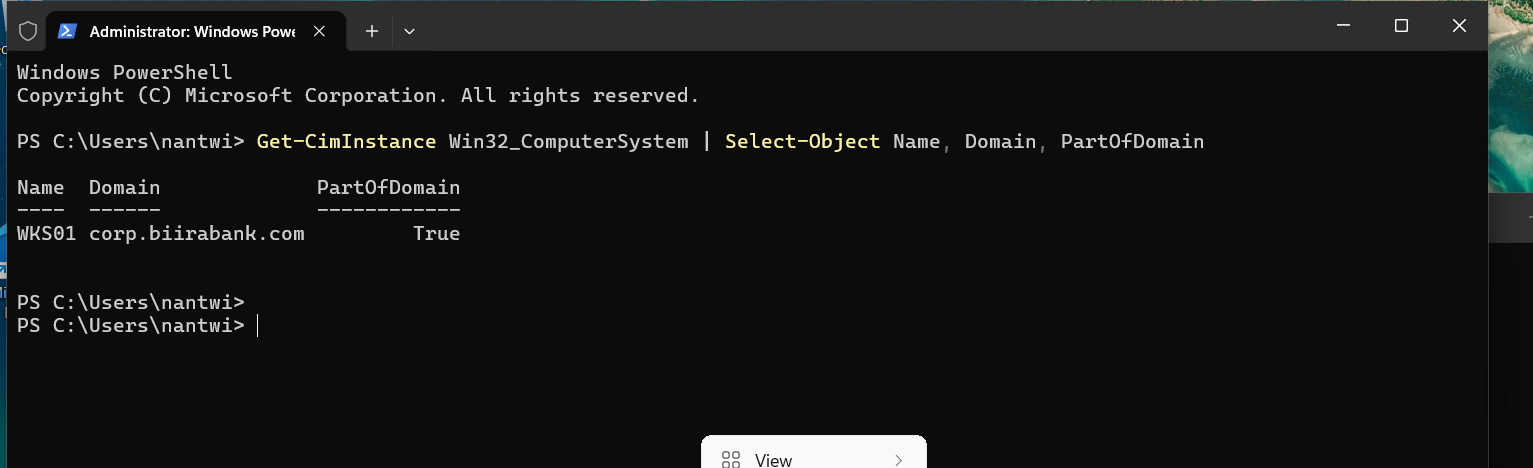
With DNS fixed, WKS01 joined the domain and landed in its pre-staged account.
Proof on a real machine
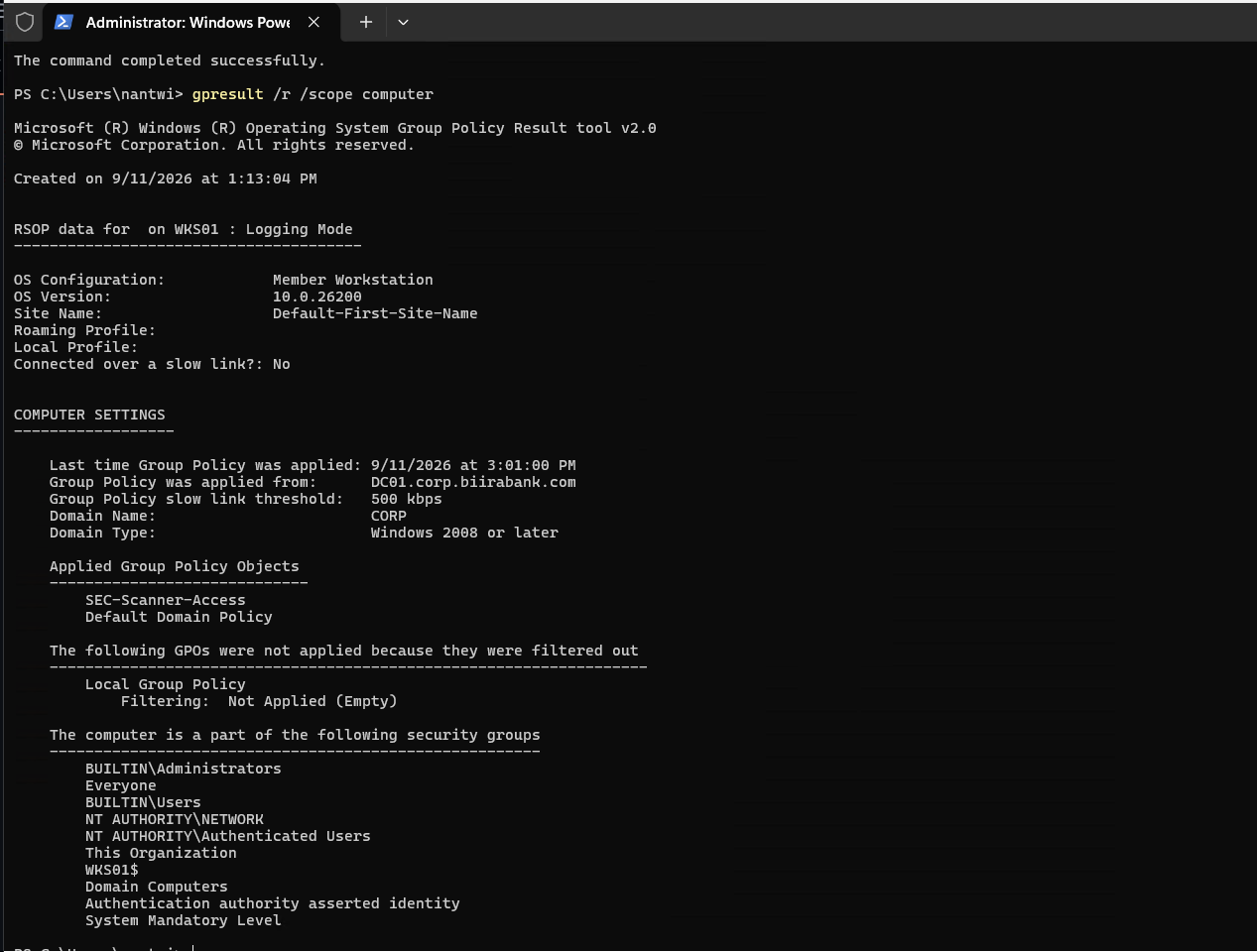
With a real workstation in scope, the policy could finally be checked where it counts. First, WKS01’s own account of which policies it received:
Then the result on the machine itself:
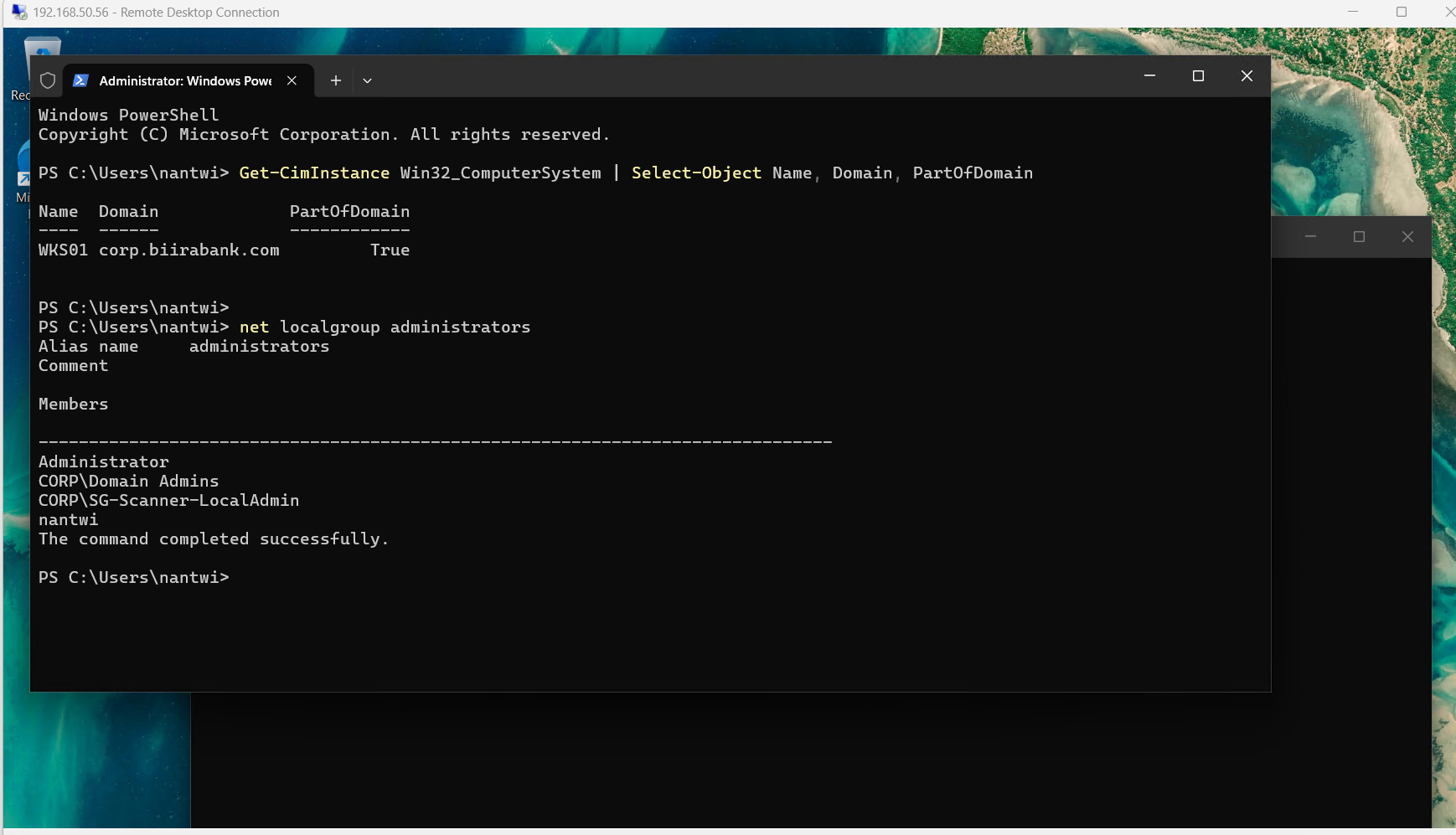
The group is in the local Administrators list, put there by the policy rather than by hand. Through it, the scanner is an administrator of this machine and of nothing it has not been scoped to.
The same list showed something I did not add. Domain Admins is put into every member machine’s Administrators group automatically when it joins. That is how domain administrators manage workstations, and it is exactly why tiered administration exists: any domain administrator who signs in to a workstation leaves a login on it that controls the whole domain. Blocking domain administrators from signing in to workstations is the standard fix, and it is on my list rather than done.
One door open, four closed
Being an administrator of a machine means you may sign in to it every way Windows offers. The scanner needs exactly one of them.
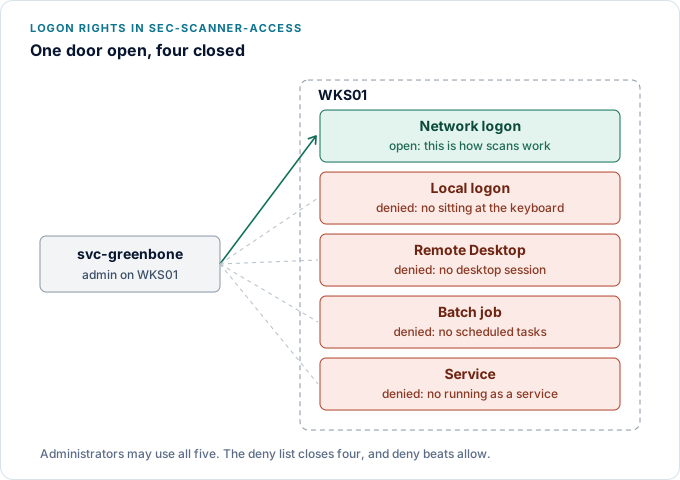
Every sign-in answers two separate questions. First, is this account who it claims to be? DC01 settles that by checking the password. Second, may this account sign in this way, on this machine? Each machine settles that from its own rules. A correct password still fails the second question if that door is closed.
The threat here is the scanner’s own password. It lives in a database and never expires, so the design assumes it will leak one day. Without these rules, a leaked scanner password is a desktop session, a Remote Desktop session, a scheduled task and a service on every workstation. With them, it is network access and nothing else.
The four “deny” rules are set in the same policy:
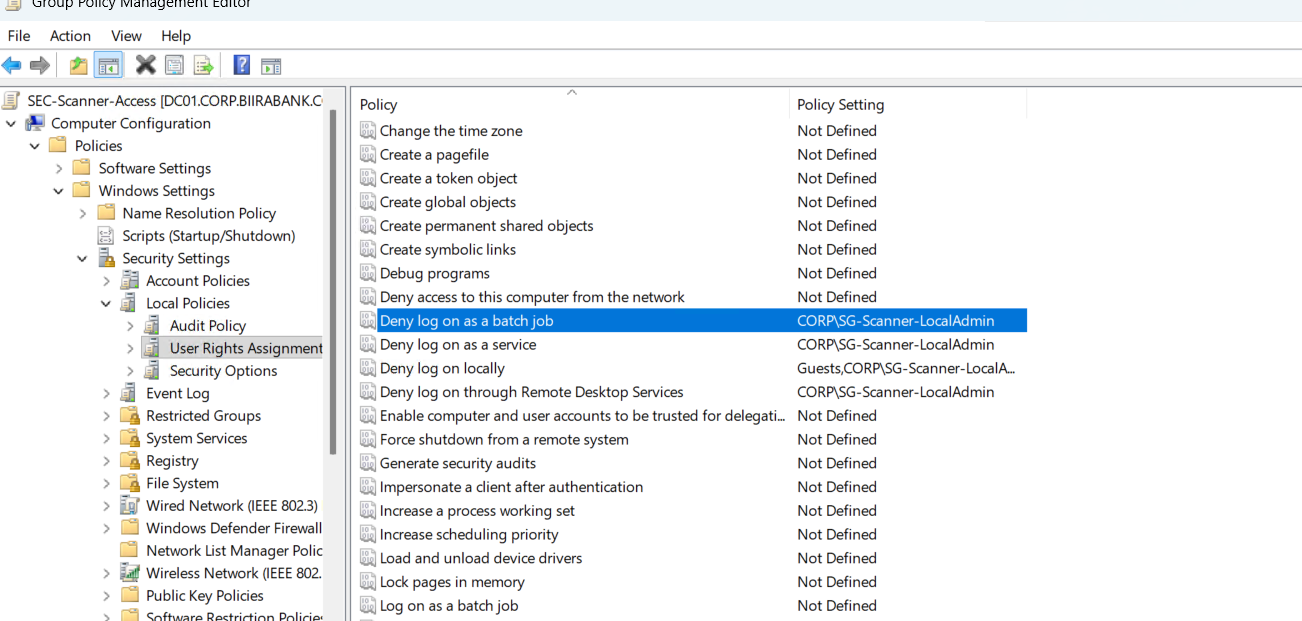
Two rules shaped these settings.
- Deny beats allow. The account keeps the administrator membership that scanning needs, while losing every door it does not use.
- Defining a right replaces it. When a policy sets one of these rules, it becomes the machine’s entire list for that rule. So I read the workstation’s existing list first, and found two rules already filled in. Defining one of them with only the scanner’s group would have silently deleted what was there.
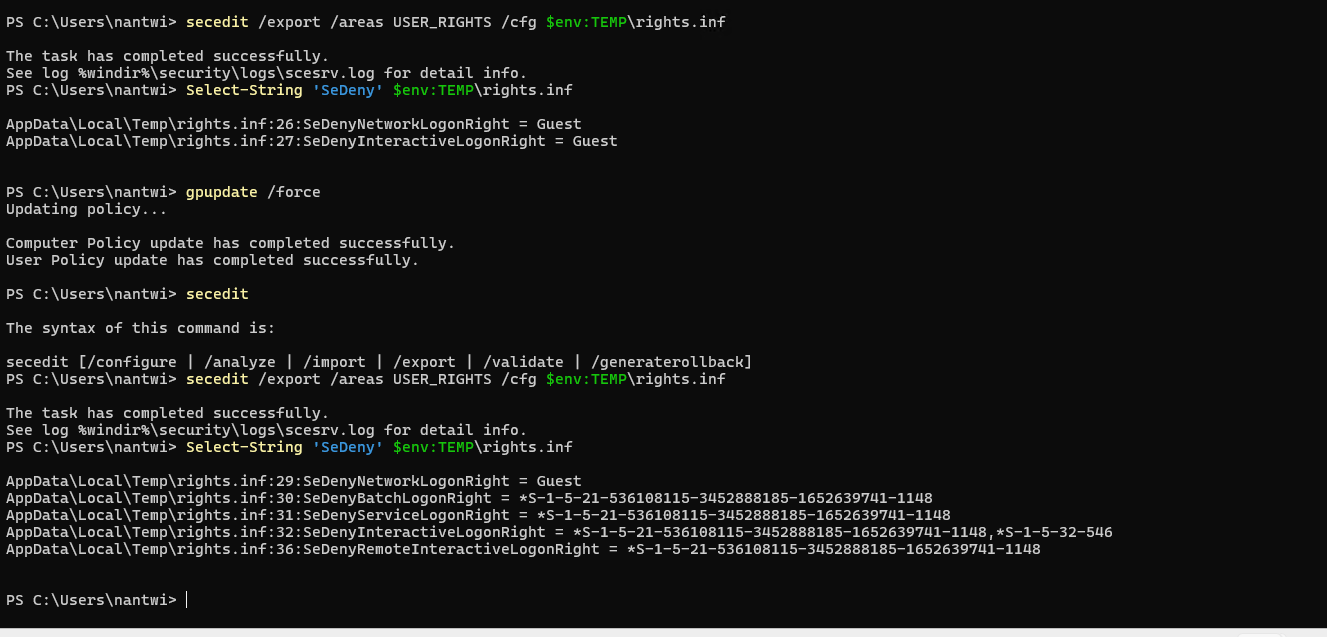
Two deny rules became five. Four name the scanner’s group. The network sign-in rule is deliberately untouched, because that is the scanner’s one working door.
A settings screen cannot prove a rule is enforced, so I tried the closed door myself.
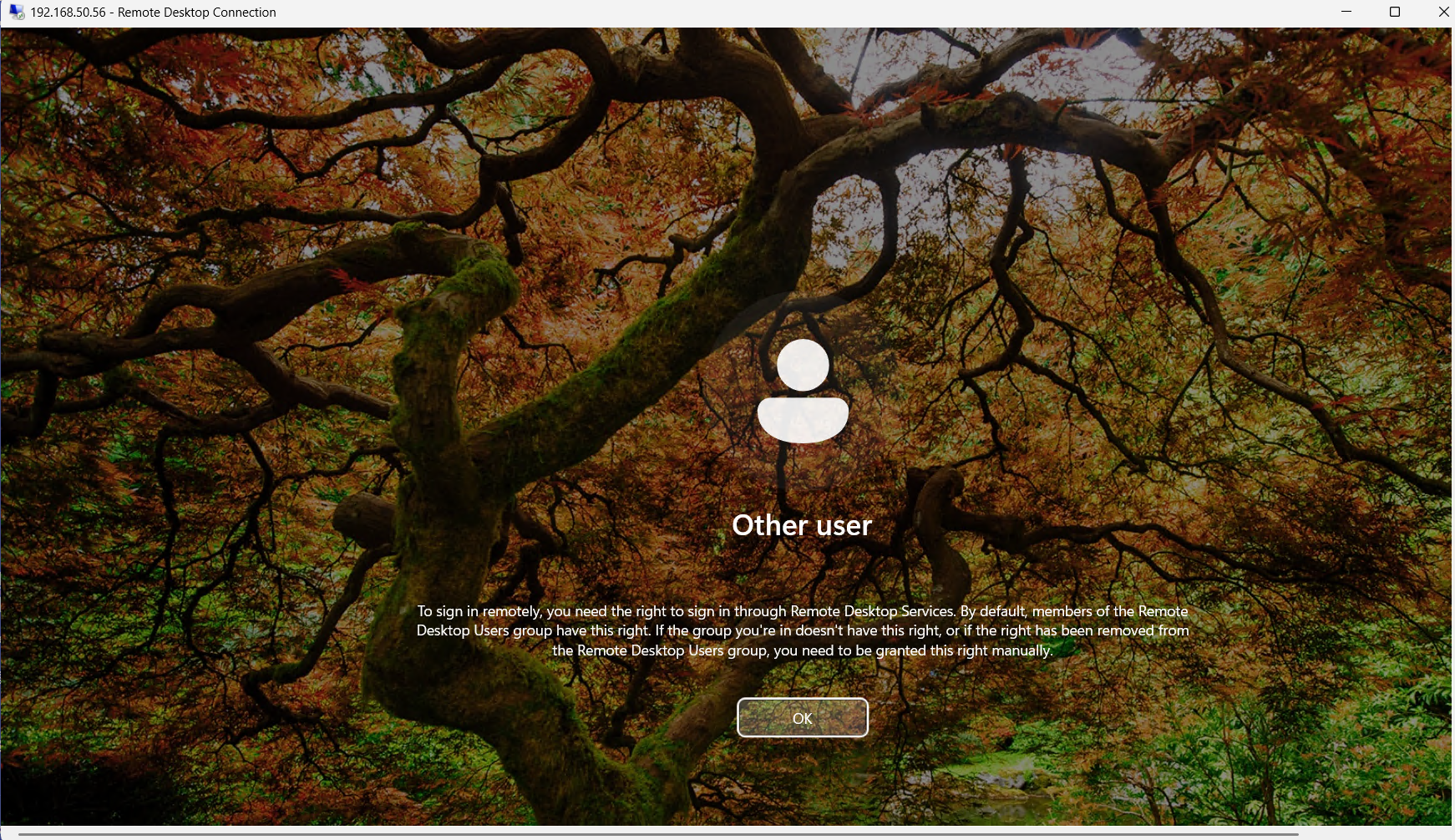
The account is an administrator of that machine. The password is correct. Windows refuses before any desktop appears and says exactly why. Deny overrides both.
The scan, and what the SIEM made of it
The first credentialed scan ran on 19 September. Two more things had to be true on WKS01, and the same policy delivered both.
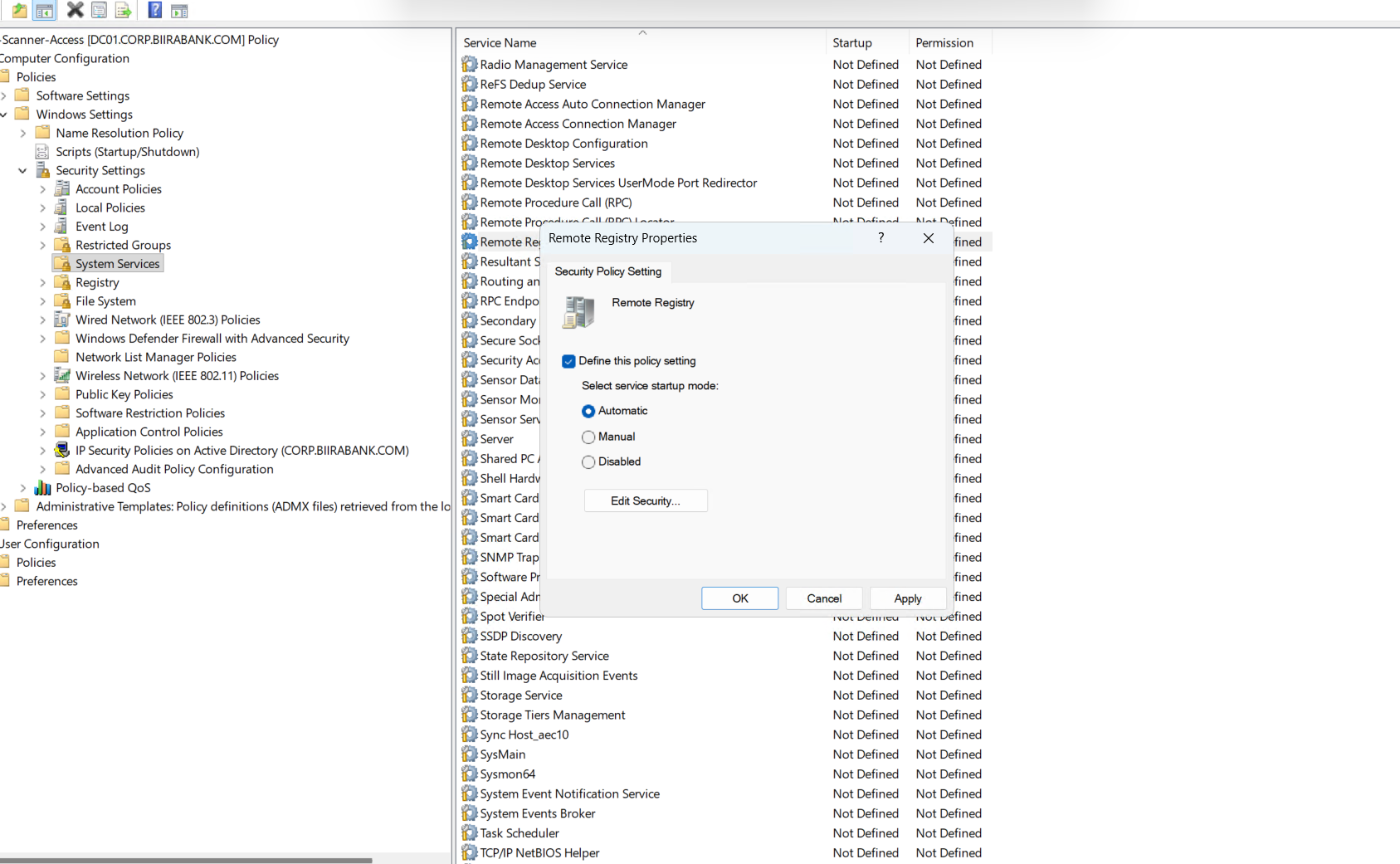
The Remote Registry service had to be running, because that is how the scanner reads installed software and patch levels over the network. It is off by default on a workstation.
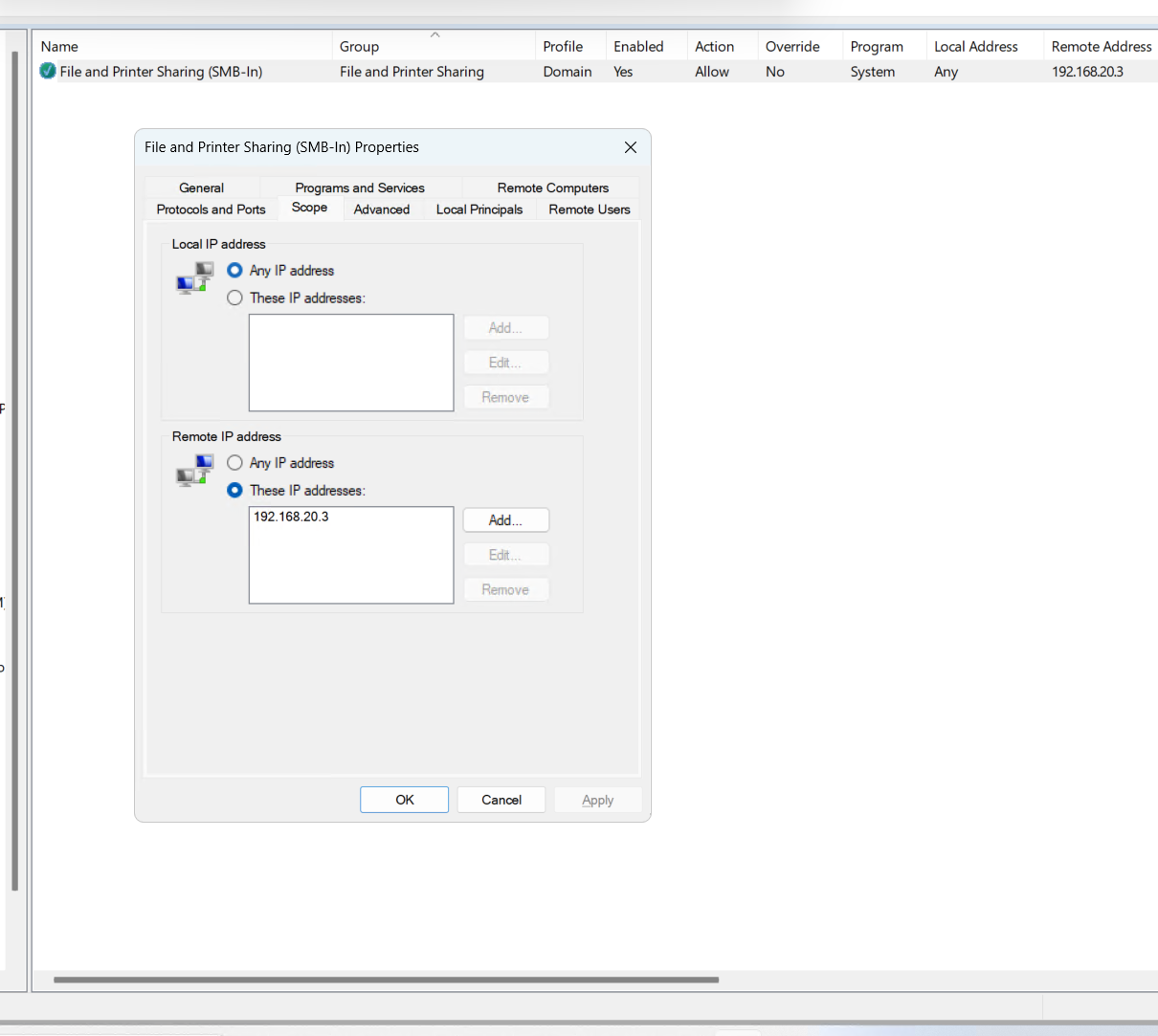
WKS01’s own firewall had to accept the scanner on port 445, the file sharing port the scan logs in over. The rule is scoped to the scanner’s single address, not the whole BlueTeam segment. A scan does not need a port opened to a network, only to one machine.
Then a one-line test from the scanner, before configuring anything in Greenbone:
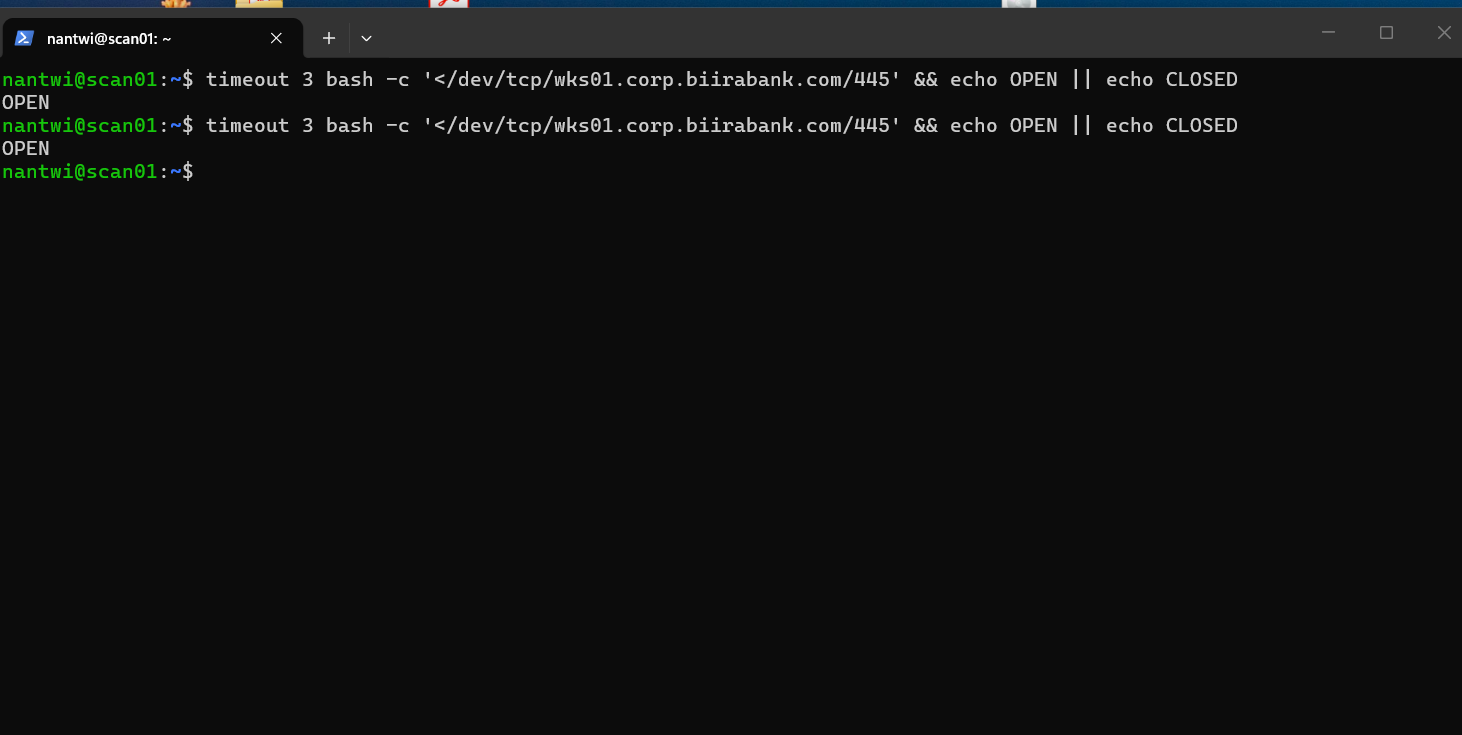
Note the name. WKS01 gets its address from DHCP, so the target is wks01.corp.biirabank.com, not an address that may belong to another machine next month. Making that name work from the scanner’s segment was its own story, told in The Zone That Did Not Exist.
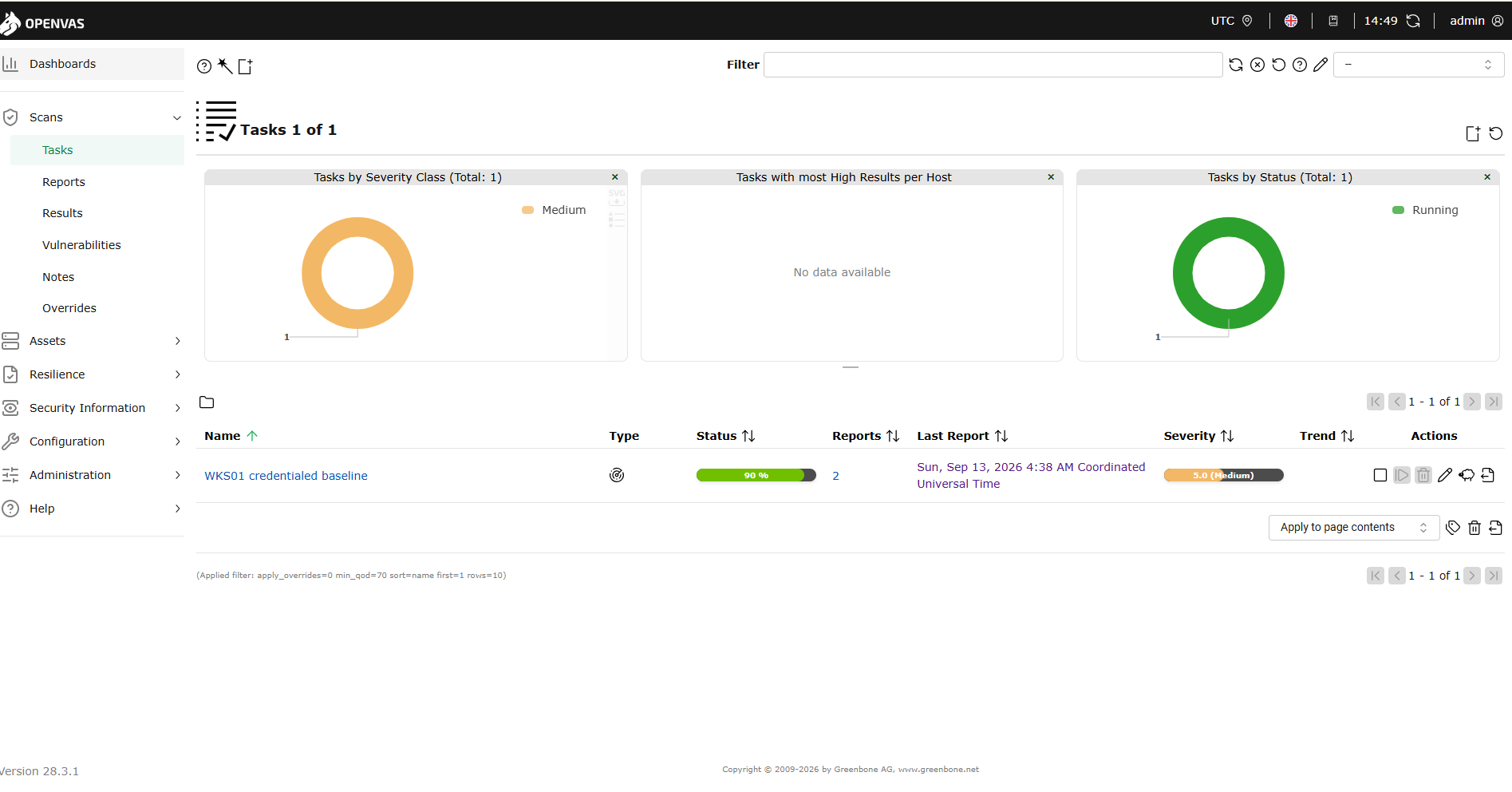
Then the part I did not plan for. While the scan ran, the SIEM lit up.
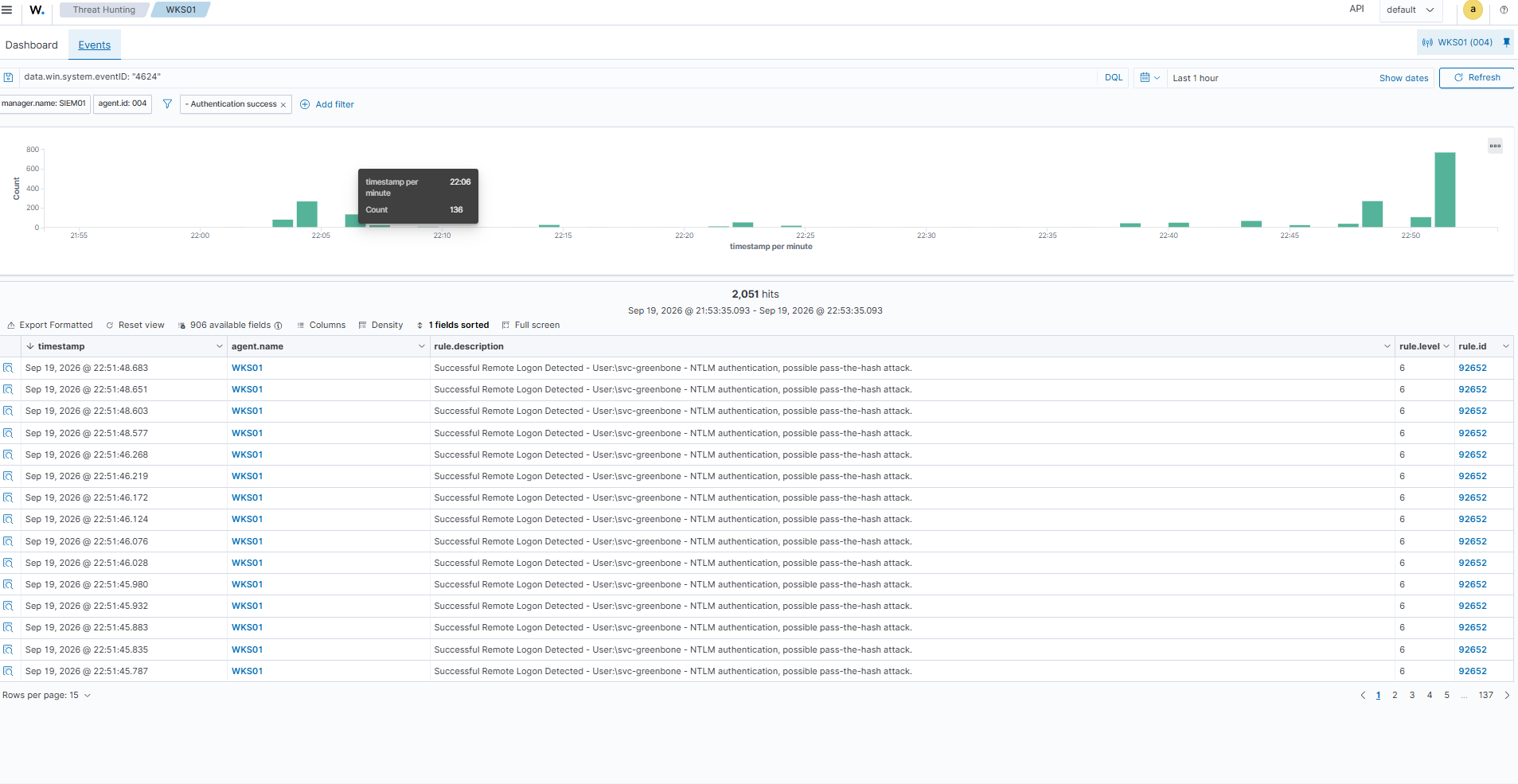
About two thousand successful sign-ins in one hour, all by one service account, all against one workstation, and Wazuh flagging them as a “possible pass-the-hash attack”. The rule is not wrong. A scanner logging in hundreds of times a minute looks exactly like stolen credentials being used, because mechanically it is the same behaviour with a different intent.
That shapes the alert this account still needs. Not “alert when it signs in”, which would fire thousands of times a scan and be muted within a week. Instead, “alert when it signs in outside a scan window”. That difference is the difference between a useful detection and noise.
What this does not solve
An administrator arriving over the network can still do real damage. These rules narrow what a stolen password is worth; they do not make it worthless. Two things are still owed: the time-bound alert above, and Vault issuing a short-lived password per scan so the never-expiring one stops being a standing exception.
There is also a retirement trap. The mechanism that adds the group to Administrators leaves it behind when the policy stops applying. Unlinking the policy does not remove the access. Retirement has to happen in order:
- Disable
svc-greenbone. Every machine checks with DC01 at sign-in, so this one change stops all new access at once. - Delete the stored password from Greenbone.
- Change the policy item from “add to this group” to “remove from this group”, and let every machine refresh.
- Only then unlink and delete the policy, the account and the group.
Delete the group first, and every machine is left with an unknown entry in its Administrators list, which is exactly what an auditor is right to flag.
Plan the removal when you plan the grant. That is the part I would have skipped a year ago.
A checklist for giving a service account admin rights
If you need to give any service account administrator rights on member machines without making it a domain administrator, this is the order I would follow now:
- Create a dedicated account in its own folder, with “cannot be delegated” switched on and a description naming its purpose and owner.
- Create a group and make the account its only member. Grant rights to the group, never the account.
- Write a Group Policy that adds the group to the built-in Administrators, using Update, picked from the list, with both delete boxes clear.
- Link it only to the folder that holds member servers and workstations. Never to the top of the domain, never to Domain Controllers.
- Check the folder is not empty. A policy that reaches no machines looks exactly like one that works.
- Deny every sign-in type the account does not need, after reading each machine’s existing list.
- Prove it on a real machine:
gpresult, the Administrators list, and a sign-in that should be refused. - Write the retirement steps now, while you still remember how it was built.
What I would tell myself at the start
- Rights go to groups, and a grant should read as a chain. If you cannot say which four things have to be true for this access to exist, you cannot take it away confidently either.
- Scope by structure, not by setting. The domain controllers are excluded because of where the link sits, not because a box is ticked.
- A policy linked to an empty folder is not a control. Prove it on a real machine before you write it up.
- Read the machine’s current list before a policy overwrites it. Defining a right replaces it.
- Saved is not applied, and a workaround on the client will fake a passing test.
- Try the closed door. A screenshot of a setting is a claim. A refused sign-in is evidence.
